Pixel Robot Startup & Runtime Overview
Overview
Pixel is shipped with a default robot bringup service that runs automatically when the robot is powered ON.
No manual commands are required to start the robot software.
Once powered on, Pixel: - Boots the operating system - Starts the robot bringup service - Launches navigation by default - Becomes ready for user interaction over ROS 2
The robot is fully operational immediately after boot.
On-Boot System Monitor (OLED Display)
When the robot powers on and the bringup sequence starts, the OLED display turns ON automatically.
The OLED acts as a real-time system monitor and displays essential runtime information:
- WiFi SSID – Network the robot is connected to
- IP Address – Robot’s local IP (for SSH, ROS 2 communication)
- Memory Usage – Used vs total system RAM
- CPU Load – Current system load
This allows quick verification that: - The robot is connected to WiFi - Networking is functional - The system is operating within safe limits
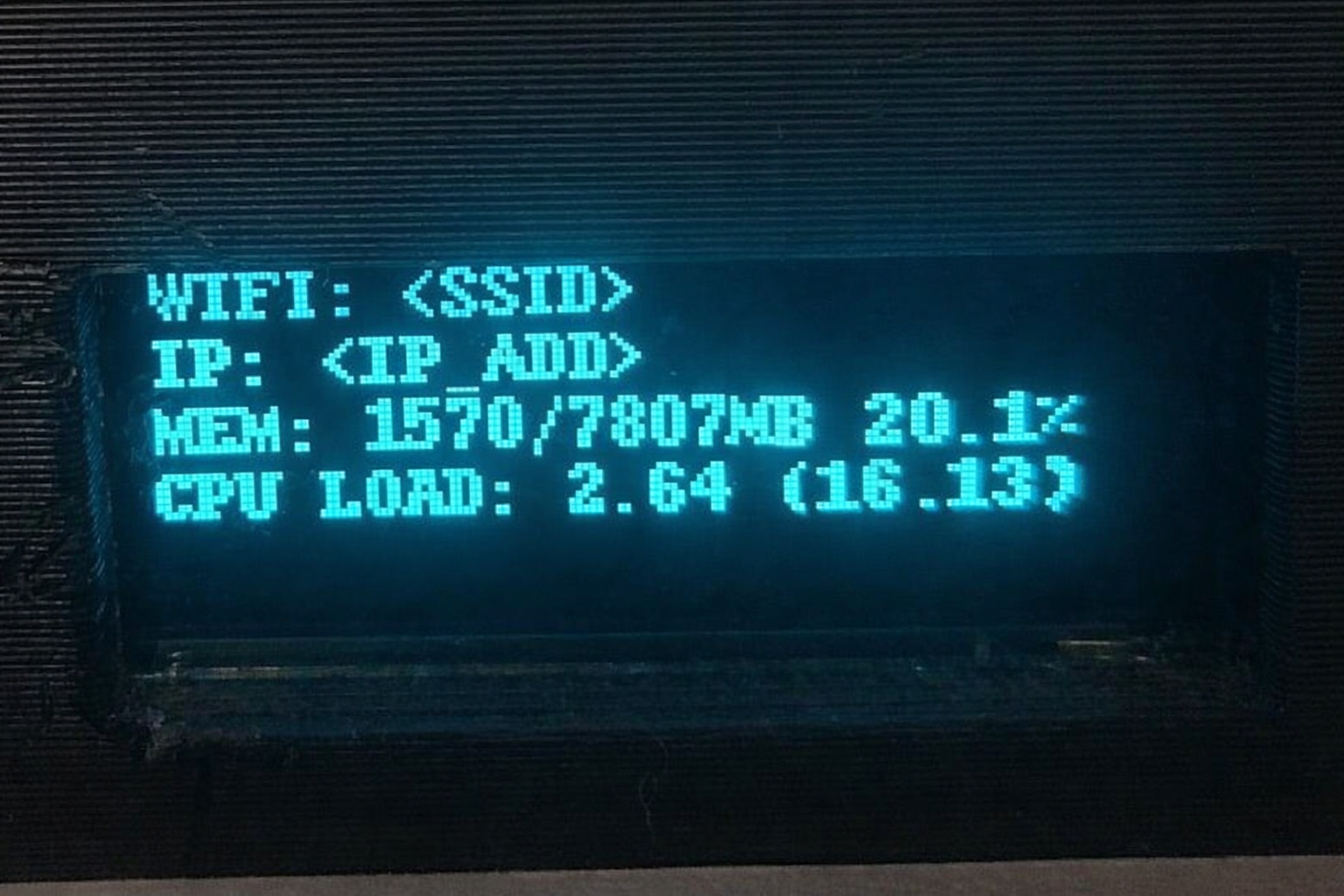
The OLED monitor starts automatically at boot and requires no manual command.
Default Robot Bringup Service
Pixel includes a preconfigured robot bringup service that activates automatically at power-on.
What the Bringup Service Does
When the robot is powered ON by the user:
- A system-level service starts automatically
- Core robot software is launched
- Navigation is brought up by default
- All required ROS 2 nodes are started in a controlled runtime environment
The user does not need to manually launch any software after boot.
Environment Variables
The bringup system internally uses the following environment variables:
| Variable | Description |
|---|---|
DOMAIN_ID=15 |
ROS 2 Domain ID used for communication. Must match the user system for connectivity. |
ROBOT_MODEL="${ROBOT_MODEL:-Pixel5}" |
Defines the robot model being used. Defaults to Pixel5 if not set. |
ROBOT_MODE="${ROBOT_MODE:-navigation}" |
Defines runtime mode. Must be passed as a string: "navigation" or "mapping". Defaults to navigation. |
MAP_FILE="/home/titan/titan_ws/src/titan_bringup/map/map2.yaml" |
Path to the map file used for localization in navigation mode. |
USE_ODOM_TF_BRIDGE=false |
Enables/disables odom-to-TF bridge. Typically false unless special setup is required. |
SESSION="PIXEL" |
Name of the tmux session running the robot stack. |
WINDOW="StartUp" |
Name of the tmux window where processes are organized. |
ROS 2 Networking & User Interaction
Pixel runs on ROS 2 Humble.
Once the robot has completed startup:
- Any user system running ROS 2 Humble
- With the same
ROS_DOMAIN_ID - On the same network
can immediately connect to the robot.
Typical User Workflow
From the user’s system: - Open RViz - Connect to the robot - Send navigation goals - Monitor robot state and feedback
No additional configuration is required on the robot side.
Runtime Management (tmux-based)
The Pixel robot bringup service is tmux-based internally.
- The bringup service launches all robot software inside a tmux session
- This allows safe persistence, observability, and recovery
- Users are not required to know tmux for normal operation
Restarting Robot Runtime (Mode Selection)
Advanced users can restart the tmux session with a specific mode:
Navigation Mode (default)
ROBOT_MODE="navigation" bash ~/robot_bringup.sh
Mapping Mode (SLAM)
ROBOT_MODE="mapping" bash ~/robot_bringup.sh
This will restart the tmux session and relaunch all processes based on the selected mode.
Attaching to the Running Robot Software
If a user needs to inspect, stop, or modify running robot software without rebooting, they can attach to the existing runtime session.
Once the robot starts, a tmux session named PIXEL is already running automatically.
tmux attach-session -t PIXEL
TMUX Session Layout
The PIXEL session is divided into multiple panes with the following responsibilities:
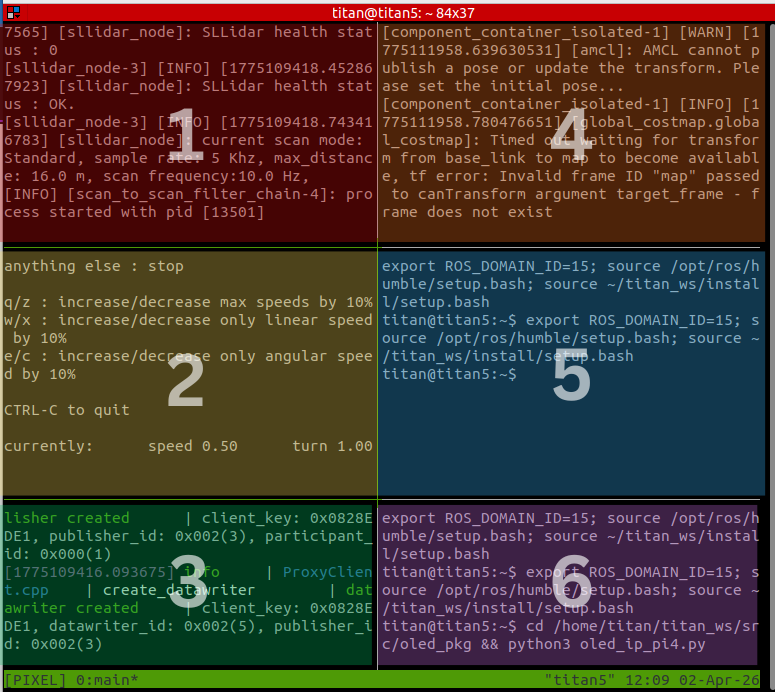
1st Pane (Red)
ros2 launch pixel_bringup pixel_bringup.launch.py
This launches: - Robot description (URDF) - State publisher - Hardware interfaces - Sensors (LIDAR, encoders, etc.) - Core TF tree
2nd Pane (Yellow)
ros2 run teleop_twist_keyboard teleop_twist_keyboard
Used to manually control the robot.
3rd Pane (Green)
micro-ros-agent serial --dev /dev/ttyUSB0
Runs the micro-ROS agent for communication with embedded hardware (ESP32, etc.).
4th Pane (Orange)
ros2 launch nav2_bringup bringup_launch.py map:=<MAP_FILE>
- Runs Navigation (Nav2)
- Active when:
ROBOT_MODE="navigation"- OR no mode is specified (default)
5th Pane (Blue)
ros2 launch slam_toolbox online_async_launch.py
- Runs SLAM Toolbox
- Active only when:
ROBOT_MODE="mapping"
If not in mapping mode, this pane remains empty and can be used for custom commands.
6th Pane (Purple)
ros2 run oled_pkg oled_ip_pi4.py
- Updates OLED display with:
- WiFi SSID
- IP address
- CPU usage
- Memory usage
Summary
- Robot starts automatically on boot
- No manual setup required for normal usage
- tmux manages all runtime processes
- Modes allow switching between navigation and mapping
- Advanced users can inspect and control everything live