Simulation
Overview
Simulation allows you to test Pixel Robot’s software stack in a virtual environment before running it on real hardware. Pixel Robot uses Ignition Gazebo (Gazebo Fortress) integrated with ROS 2 through ros_gz_sim to provide a realistic simulation of sensors, robot motion, mapping, and navigation.
Simulation is strongly recommended for: - Testing navigation parameters - Debugging SLAM and localization - Developing new features safely - Learning ROS 2 workflows without hardware risk
Simulation Stack
The simulation setup consists of:
- Ignition Gazebo (Gazebo Fortress)
- ros_gz_sim for ROS 2 ↔ Gazebo integration
- Simulated Pixel Robot model
- Simulated sensors (LIDAR)
- RViz2 for visualization
Setup
Installing Ignition Gazebo (Gazebo Fortress)
Install Ignition Gazebo Fortress:
sudo apt update
sudo apt install ignition-fortress
Verify installation:
ign gazebo --version
Installing ROS–Gazebo Integration
Install the ROS 2 Gazebo integration packages:
sudo apt install ros-humble-ros-gz-sim
sudo apt install ros-humble-ros-gz-bridge
sudo apt install ros-humble-ros-gz-image
These packages enable communication between ROS 2 and Ignition Gazebo.
Preparing the Workspace
Ensure your Pixel Robot workspace is built and sourced:
cd ~/titan_ws
colcon build
source install/setup.bash
NOTE: If running simulation in a virtual machine:
export LIBGL_ALWAYS_SOFTWARE=1
export IGN_RENDER_ENGINE=ogre
export GZ_SIM_RENDER_ENGINE=ogre
This is used to make CPU use ogre renderer to launch gazebo.
Launching the Simulation
Start the simulation using the Pixel Robot simulation bringup:
ros2 launch pixel_simulation bringup_sim.launch.py
This launch file performs the following actions:
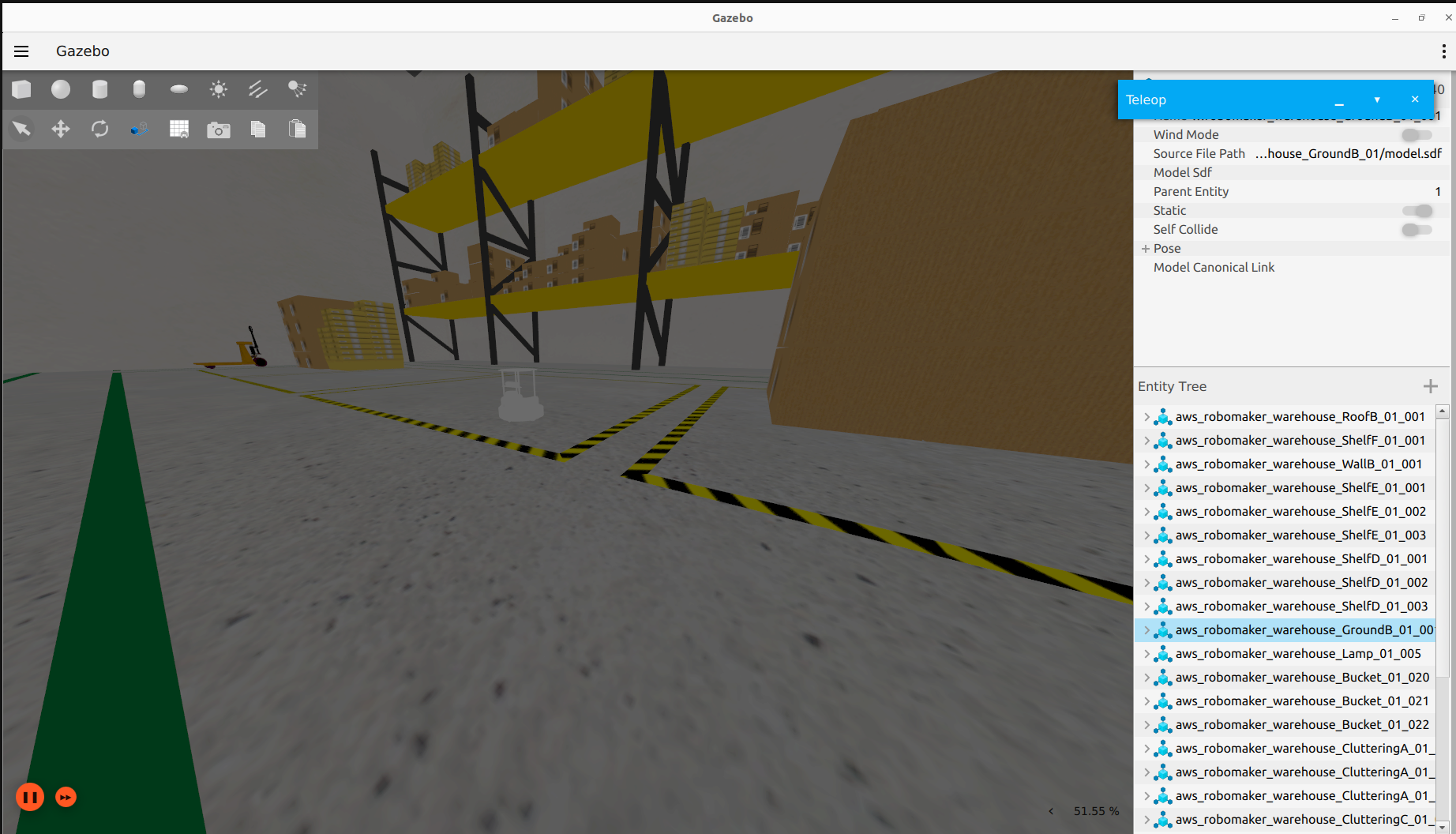
- Starts Ignition Gazebo
- Loads the warehouse world
- Spawns the Pixel Robot model
- Launches simulated LIDAR
- Bridges Gazebo sensor data to ROS 2
- Starts RViz2 with a preconfigured view
Verifying the Simulation
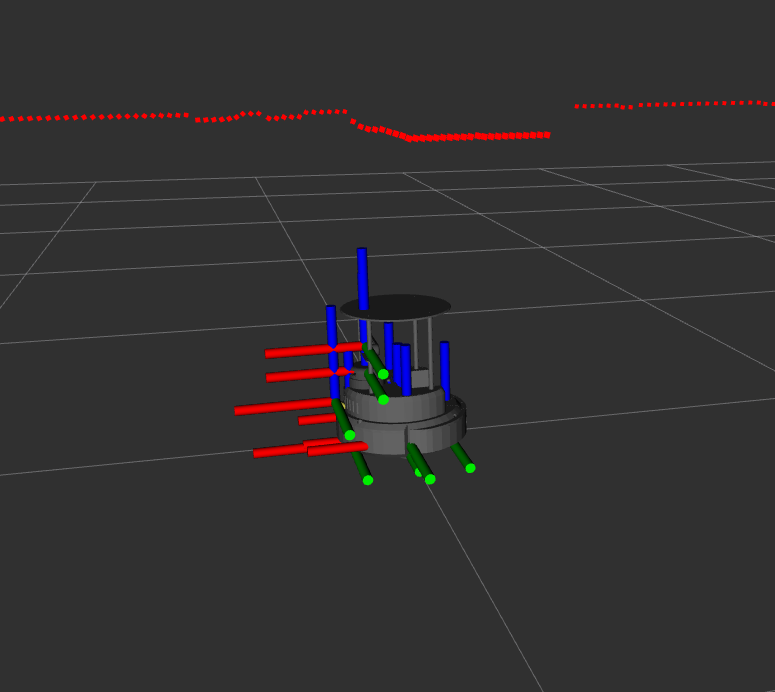
Once launched, verify the following:
- The robot appears in the Gazebo warehouse world
- RViz2 shows the robot model
- LIDAR scan data is visible in RViz2
- TF frames are correctly published
At this stage, the robot is ready for mapping.
Mapping in Simulation
Launching SLAM
Open a new terminal, source the workspace, and launch SLAM:
source ~/titan_ws/install/setup.bash
ros2 launch pixel_simulation slam.launch.py
This launch file runs SLAM Toolbox in online asynchronous mode, using simulated LIDAR data.
Visualizing the Map
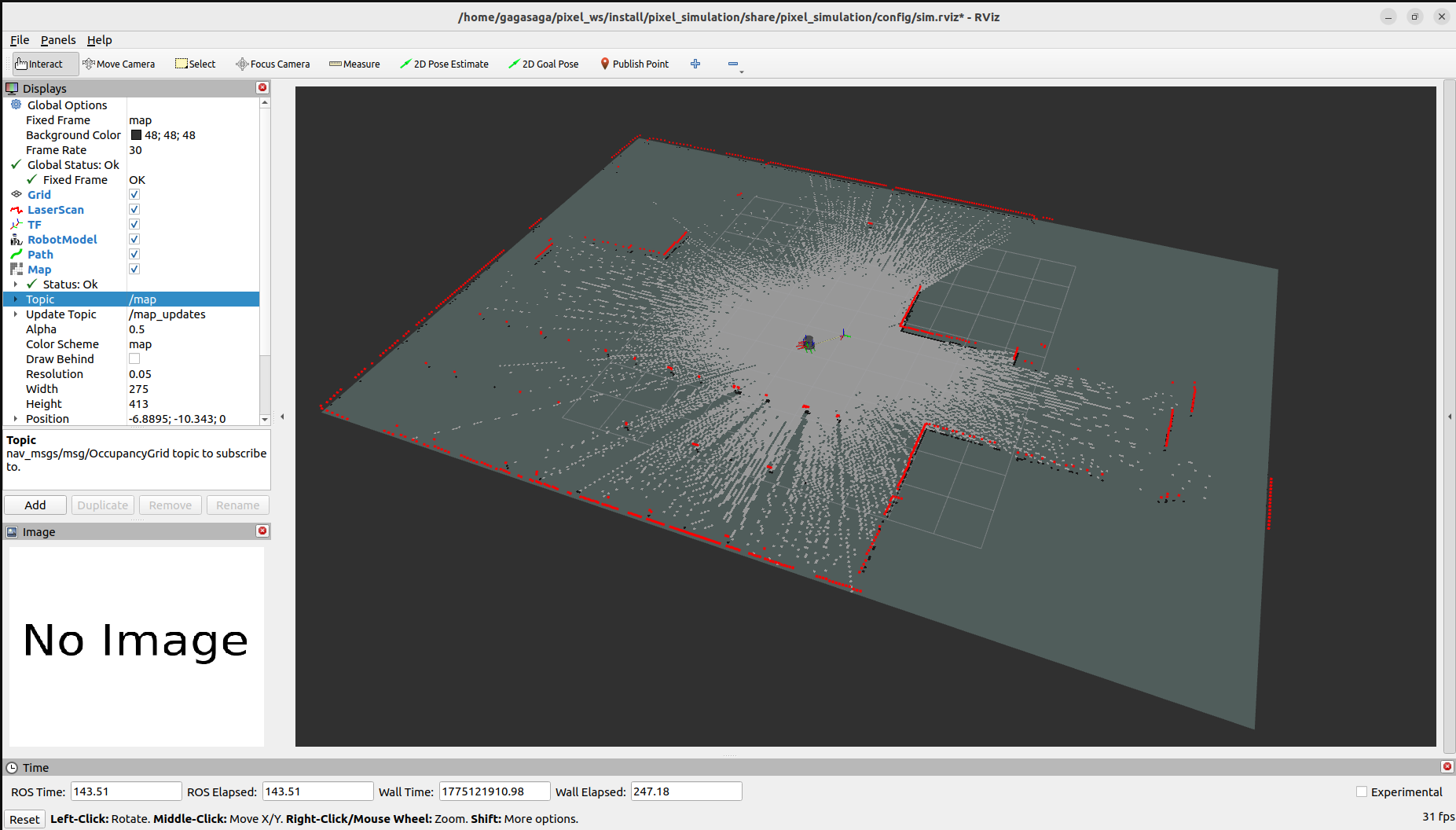
In RViz2:
- Set Fixed Frame to
map - Add the Map display if not already visible
- Observe the map being generated as the robot moves
You can use teleoperation to explore the environment and build the map.
Saving the Map
Once mapping is complete:
- In RViz2, open the Slam Toolbox Plugin
- Click Save Map
- Choose a directory and map name
This generates a .yaml and .pgm map file that can be reused for navigation.
Navigation in Simulation
After saving the map, stop the SLAM launch and start navigation.
Run the following command in a new terminal:
ros2 launch pixel_simulation pixel_nav.launch.py use_sim_time:=true map:=/absolute/path/to/your/map.yaml
This launch file starts:
- Map server
- Localization
- Navigation stack (Nav2)
- Costmaps and planners
The use_sim_time argument ensures synchronization with simulation time.
Sending Navigation Goals
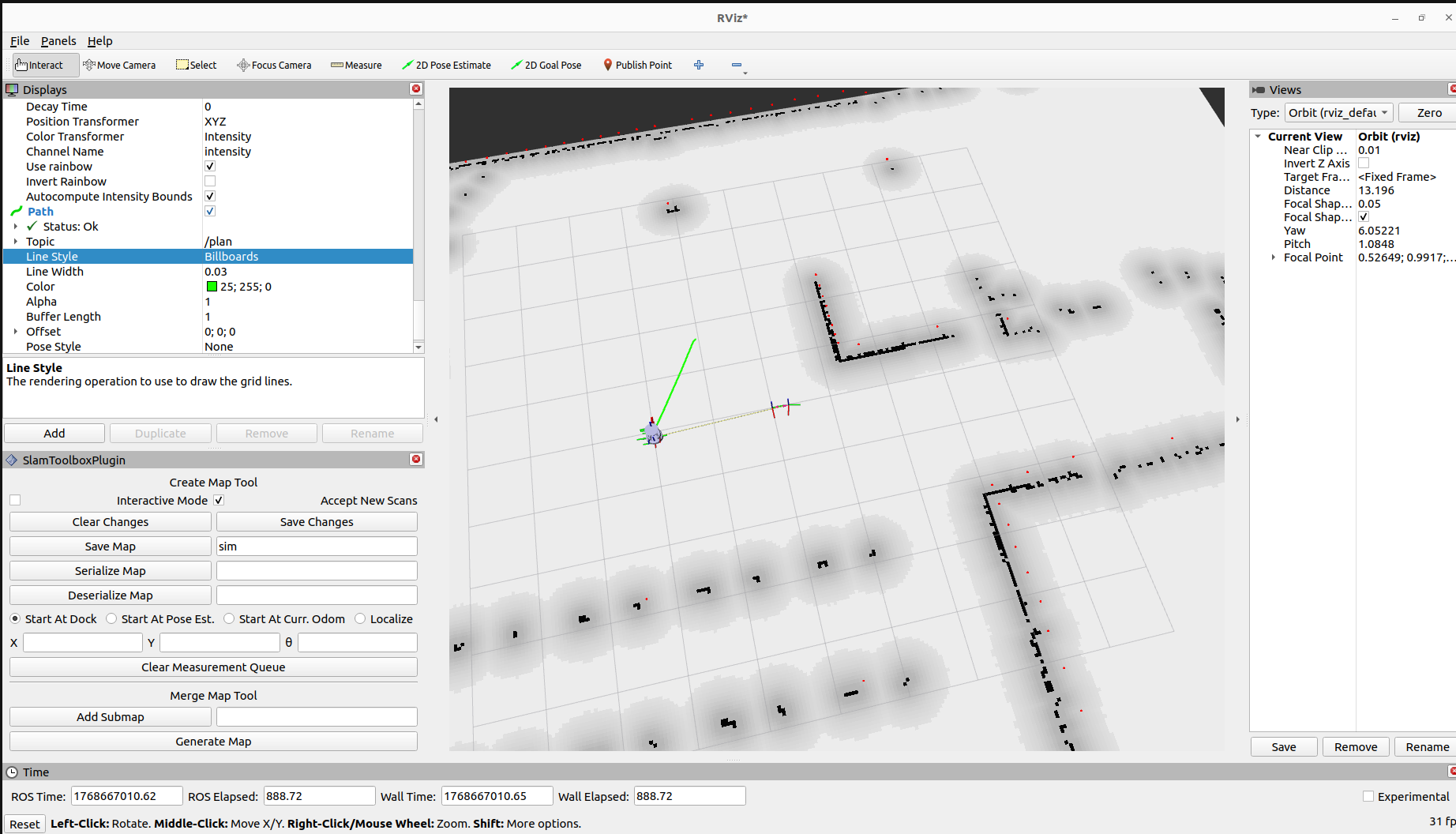
In RViz2:
- Set Fixed Frame to
mapand give 2D Pose Estimate - Use the 2D Goal Pose tool
- Select a goal location in the map
The robot will autonomously navigate to the goal within the simulated environment.
Simulation Time
Simulation runs on a simulated clock.
Ensure that:
- use_sim_time is set to true
- Nodes are synchronized to Gazebo time
This is critical for correct SLAM and navigation behavior.
Common Simulation Issues
| Issue | Possible Cause | Solution |
|---|---|---|
| Robot not moving | Controllers not loaded | Check bringup launch logs |
| No LIDAR data | Bridge not running | Verify ros_gz bridges |
| Navigation fails | Map not loaded | Check map file path |
| Time-related errors | use_sim_time false | Enable simulation time |
Simulation vs Real Robot
Key differences to keep in mind:
- Simulation has perfect sensor alignment
- No wheel slip unless modeled
- Odometry is ideal compared to real robot
- Navigation may appear smoother in simulation